
Mastering Audio Monitoring: How to Check Your OBS Sound Before It Hits Your Live Stream or Recording

Dan Nagle • July 29, 2023

How to monitor audio output from OBS

Introduction


In the world of live streaming, Open Broadcaster Software (OBS) has become an essential tool for many content creators. Whether you are hosting a webinar, live gaming session, or an interactive live event, OBS provides the flexibility and features you need. However, one common question is how to monitor the sound going out to a stream - such as Facebook, YouTube, Twitch, and others - without having to listen to the live stream itself. In this blog post, we will cover this topic, providing you with a clear guide on how to effectively monitor your OBS audio output.


Understanding OBS Audio Monitoring


The idea behind audio monitoring is simple: you want to hear what your audience hears to ensure that the audio quality is as good as possible. This is especially crucial when dealing with multiple audio sources, as you need to balance the levels to provide a pleasant listening experience.

In OBS, audio monitoring can be accessed via the advanced audio settings, which provides three monitoring options: 'Monitor Off', 'Monitor Only (mute output)', and 'Monitor and Output'. However, these options might not allow you to monitor the final mixed audio that is being streamed out.


Monitoring OBS Audio Output without Listening to the Live Stream


What if you want to monitor the final mix that your audience is hearing, without listening to the live stream? This can be achieved using the following steps:


  1. First, you will need a virtual audio cable - a software that allows you to route audio between apps. Examples include VB-Cable (Windows), Blackhole (Mac), or JACK (Linux).
  2. Install the virtual audio cable software and set it as your main audio device in OBS (Settings -> Audio -> Advanced -> Monitoring Device).
  3. Next, open your computer's sound settings and set the virtual audio cable as your main output device.
  4. Finally, you can use any audio player that supports multiple output devices to monitor the sound. Choose your regular speakers or headphones as the output device in the audio player, and you will be able to monitor the final mixed audio that is going out to your stream.


With this setup, you can monitor your OBS audio output without having to listen to your live stream, helping you provide better audio quality for your viewers.


Conclusion


Monitoring your OBS audio output can be a vital aspect of ensuring high-quality audio in your live streams. By utilizing a virtual audio cable, you can listen to the final audio mix, enabling you to fine-tune your sound settings for an optimal viewer experience. Happy streaming!
Frequently Asked Questions (FAQ)
  • What is a virtual audio cable and where can I get it?

    A virtual audio cable is a software that allows you to route audio between different applications on your computer. Some examples are VB-Cable for Windows, Blackhole for Mac, and JACK for Linux. These can typically be found and downloaded online from the software's official website or reputable software download sites.

  • Can I use this method to monitor my OBS audio output on all streaming platforms?

    Yes, this method allows you to monitor the final mixed audio that is going out to your stream, regardless of the streaming platform you are using. This includes platforms like Facebook, YouTube, Twitch, and others.

  • I followed the steps, but I'm not able to monitor the audio. What should I do?

    Ensure that the virtual audio cable is set as your main audio device in both OBS and your computer's sound settings. If you're still having trouble, feel free to book a meeting with us using the button at the top of the page or email us at yourfriends@techdirection.com for further assistance.

  • What if I want to listen to the live stream and monitor the OBS audio output at the same time?

    The method outlined in this blog allows you to monitor the OBS audio output separately from the live stream. If you want to listen to both, you could open the live stream in a separate device or browser window, but keep in mind this might introduce a delay due to the nature of live streaming.

  • Can you help me set up my streaming environment?

    Absolutely! We're here to assist you in setting up your streaming environment to ensure you can deliver high-quality streams. You can book a meeting with us by clicking the button at the top of the page or if you prefer, email us at yourfriends@techdirection.com, and we'll be happy to help.

November 5, 2025
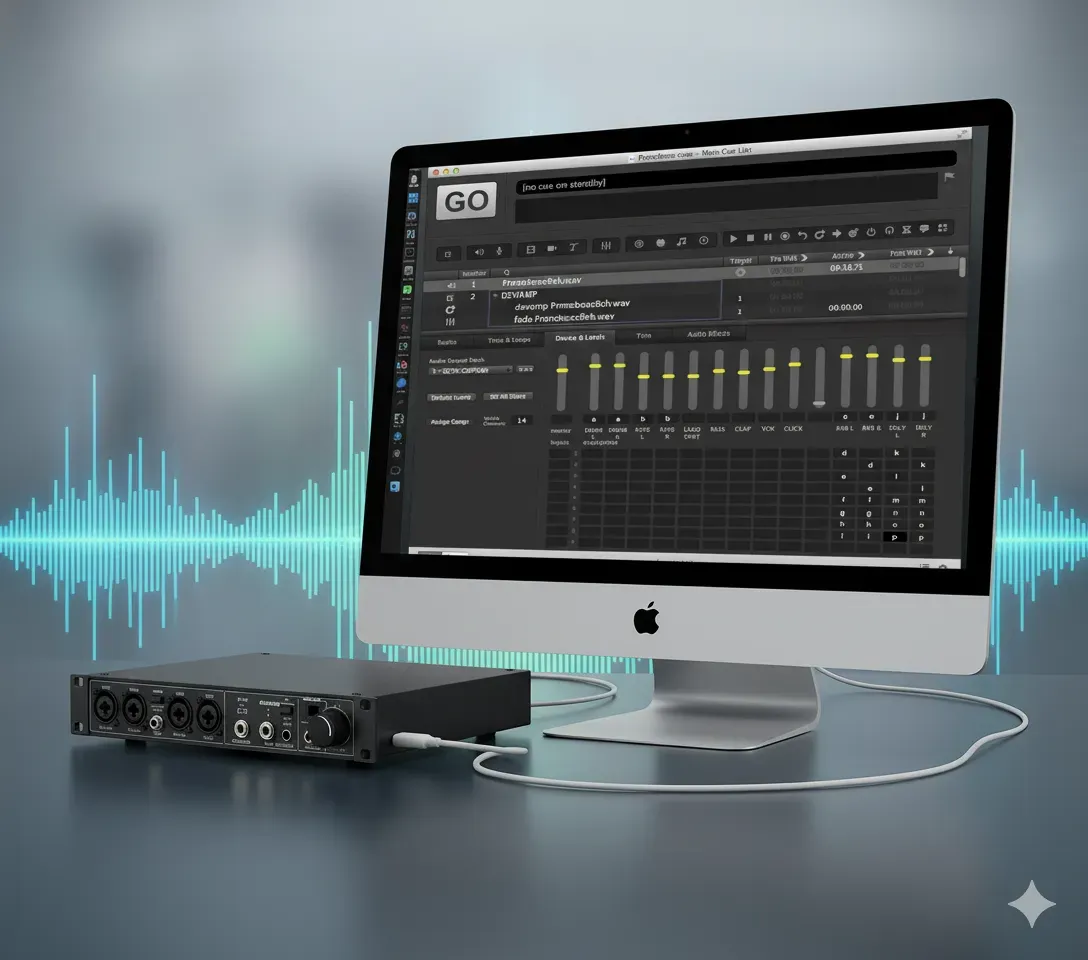
It’s tech week. Your show is built. You’ve got cues for the main PA, for the on-stage monitors, for the subs, and for the lobby speakers. You plug in your trusty 8-output USB audio interface, open your cueing software—be it QLab, Show Cue Systems (SCS) , Canvas , Multitracks Playback , or even OBS for video—and... it only sees two outputs. "Speakers (L/R)". You're losing time, the director is asking to hear the cue again, and you just need it to work. Don't panic. This is one of the most common and frustrating problems in pro audio, and the fix is almost always the same. Your hardware is not broken. The problem is your drivers and configuration. This guide will walk you through the fix for both Windows and MacOS . For MacOS Users (QLab): The Answer is Audio MIDI Setup
November 3, 2025
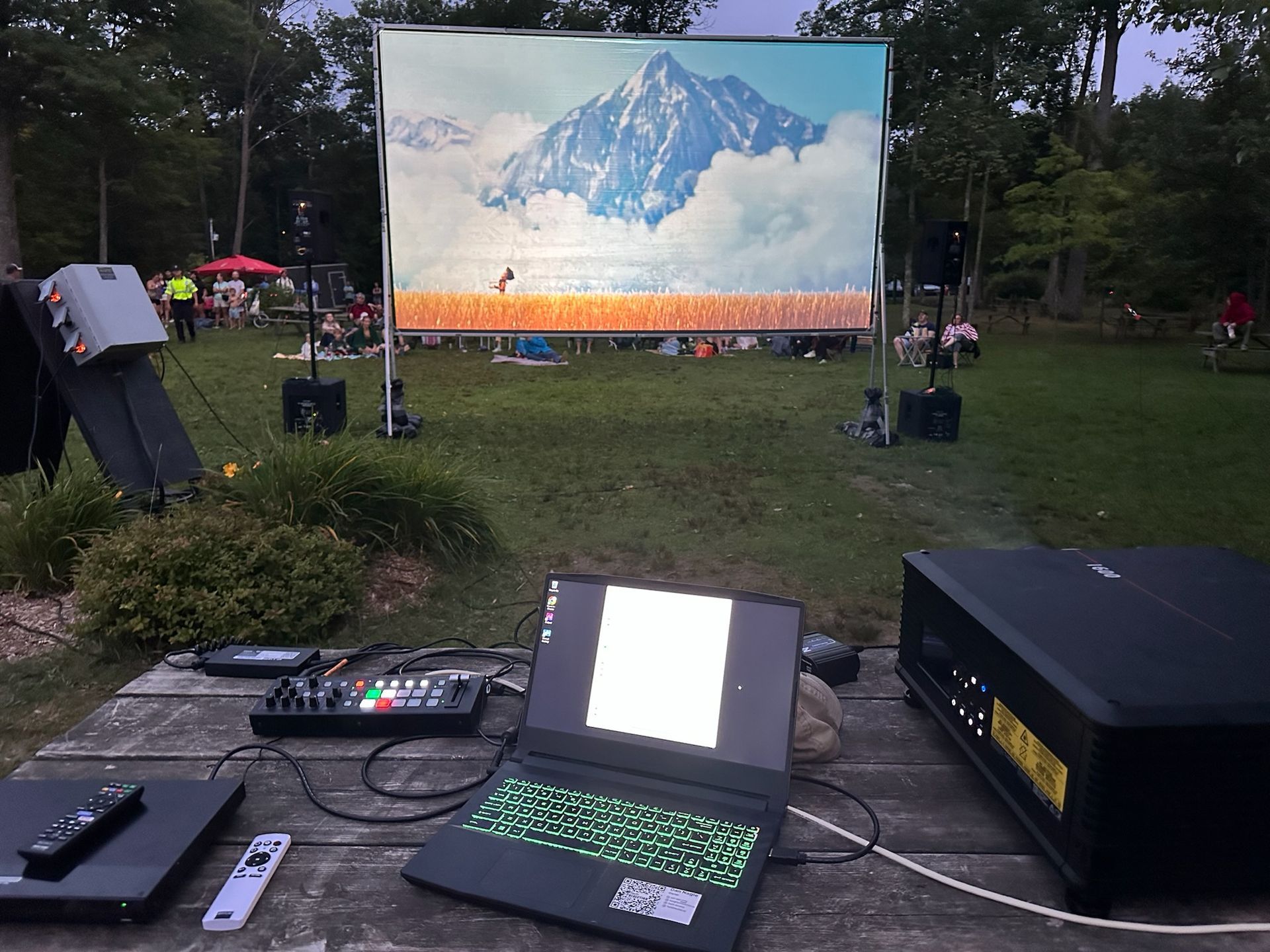
The way we watch movies is changing. Audiences are increasingly skipping the traditional big-box cinema, looking for a unique experience without the sticky floors and high-priced junk food. This shift has sparked a boom in pop-up screenings, from outdoor film festivals and municipal "movie in the park" nights to live theatres using their off-seasons to generate new revenue. No matter the venue or the season, the challenge for all these groups is the same: sourcing projection that is portable, bright enough to compete with ambient light, and delivers the stunning 4K experience audiences now expect.
October 16, 2025
This year's "Mission Impossible" Award goes to an individual who defied the odds, who stared down technical nightmares and emerged victorious. Their ingenuity transformed what seemed impossible into a breathtaking reality... 
More Posts